
Table of Contents >> Show >> Hide
- Why Connect a Keyboard to a PS4?
- Before You Start: What You Should Know
- Way 1: Connect a Wired USB Keyboard to Your PS4
- Way 2: Connect a Bluetooth Keyboard to Your PS4
- Way 3: Use a Wireless Keyboard with a USB Receiver
- How to Change PS4 Keyboard Settings
- Can You Use a Keyboard and Mouse on PS4?
- Troubleshooting: What If Your PS4 Keyboard Is Not Working?
- Which Method Is Best?
- Practical Examples
- Extra Experience: What It Is Actually Like Using a Keyboard on PS4
- Conclusion
- SEO Tags
Note: A keyboard can make your PlayStation 4 much easier to use for typing messages, searching the PlayStation Store, chatting in supported games, and navigating certain apps. However, full keyboard gameplay depends on the game. Your PS4 may recognize the keyboard perfectly, while a specific game may still say, “Cute. Now pick up the controller.”
Why Connect a Keyboard to a PS4?
Typing on a PS4 controller is possible, in the same way eating soup with a fork is possible: technically yes, emotionally no. The on-screen keyboard works, but it can feel painfully slow when you are entering passwords, searching for games, typing party messages, or trying to explain to your squad that you definitely meant to jump off that roof.
That is where a keyboard comes in. When you hook up a keyboard to a PS4, you can type faster, search more comfortably, and communicate more clearly in games that support text chat. For MMO players, streamers, social gamers, and anyone who uses the PS4 web browser, a keyboard is one of the simplest upgrades you can make.
The good news is that the PS4 supports external keyboards through several connection methods. You can use a wired USB keyboard, a Bluetooth keyboard, or a wireless keyboard that comes with a USB receiver. Each option has its own advantages, and none of them require advanced technical knowledge. If you can plug in a phone charger without starting a small electrical drama, you can handle this.
Before You Start: What You Should Know
Before choosing your setup method, it helps to understand what a PS4 keyboard can and cannot do. A connected keyboard usually works well for entering text, searching, messaging, logging in, and using supported apps. You can also adjust keyboard settings from the PS4 menu, including keyboard language, key repeat delay, and key repeat rate.
For gaming, support is more selective. Some PS4 games allow keyboard input for chat only. Others support full keyboard and mouse controls. A few games may ignore keyboard input entirely during gameplay. This is not usually a problem with your keyboard; it is simply how the game was designed.
You should also know that adapters that convert keyboard input into controller input may violate the rules of some competitive games. If you play online shooters or ranked multiplayer games, use native keyboard support only when the game allows it. Winning is fun. Getting reported by half the lobby is less fun.
Way 1: Connect a Wired USB Keyboard to Your PS4
The easiest way to hook up a keyboard to a PS4 is with a wired USB keyboard. This is the “plug it in and move on with your life” method. It is reliable, fast, inexpensive, and usually works without pairing, charging, batteries, or mysterious blinking lights.
What You Need
You need a standard USB keyboard and an available USB port on your PS4. Most full-size keyboards, compact keyboards, and basic office keyboards should work. Gaming keyboards may also work, although some extra features such as RGB software controls, macro keys, or brand-specific customization may not function on the console.
Step-by-Step Setup
- Turn on your PS4 and sign in to your user profile.
- Plug the keyboard’s USB cable into one of the USB ports on the front of the PS4.
- Wait a few seconds while the console recognizes the device.
- Open a text field, such as Messages or the PlayStation Store search bar, and test typing.
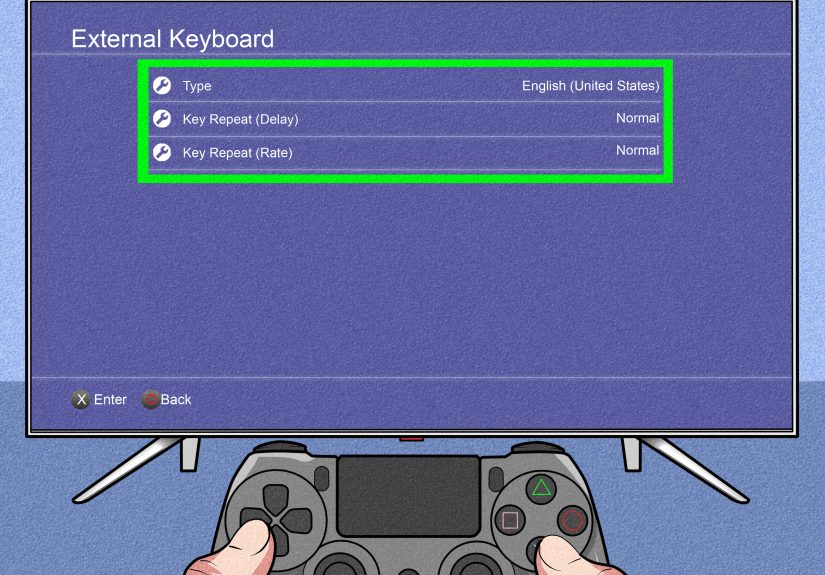
- Go to Settings > Devices > External Keyboard if you want to adjust keyboard settings.
In the External Keyboard menu, you can select the keyboard type by language. You can also change the key repeat delay and key repeat rate. These settings control how quickly a character begins repeating when you hold down a key and how fast it repeats. If your keyboard feels too jumpy or too slow, this is the place to fine-tune it.
Best Uses for a Wired USB Keyboard
A wired USB keyboard is ideal if your PS4 sits near your desk or gaming chair. It is also the best choice for players who want the lowest input delay and the fewest connection problems. There are no batteries to replace, no Bluetooth pairing steps, and no wireless interference.
The downside is cable length. If your couch is across the room, a short keyboard cable may leave you hunched forward like a goblin guarding a treasure chest. You can use a longer USB cable or a powered USB hub, but make sure your setup is safe and does not create a tripping hazard.
Way 2: Connect a Bluetooth Keyboard to Your PS4
If you prefer a cleaner setup with fewer cables, a Bluetooth keyboard is a great option. This method is especially useful for living rooms, media centers, and couch gaming setups. A Bluetooth keyboard lets you type from a comfortable distance without stretching a cable across the floor like a low-budget laser trap.
What You Need
You need a Bluetooth keyboard that can enter pairing mode. Most Bluetooth keyboards have a dedicated pairing button or a key combination such as Fn + Bluetooth. Check your keyboard’s manual if you are not sure. Some devices require a passkey during pairing, while others connect automatically.
Step-by-Step Setup
- Turn on your PS4 and sign in.
- Put your Bluetooth keyboard into pairing mode.
- On the PS4, go to Settings > Devices > Bluetooth Devices.
- Wait for your keyboard to appear in the device list.
- Select the keyboard and follow the on-screen instructions.
- If prompted for a passkey, enter the code shown on screen using the keyboard, then press Enter.
- Open a text field and test the keyboard.
Once paired, the keyboard should reconnect when it is turned on and near the PS4. If it does not reconnect, return to the Bluetooth Devices menu and select it manually. If the device is no longer needed, highlight it, press the Options button on your controller, and choose the option to forget or remove it.
Best Uses for a Bluetooth Keyboard
A Bluetooth keyboard is best for casual typing, messaging, web browsing, and gaming from a couch. It keeps your setup neat and gives you more freedom of movement. If your PS4 is part of your entertainment center, this is often the most comfortable choice.
The trade-off is that Bluetooth can be slightly less predictable than a wired connection. Some keyboards may not be supported. Others may pair but occasionally lag, disconnect, or refuse to cooperate until you restart them. Technology has moods. We do not like it, but we respect it.
Way 3: Use a Wireless Keyboard with a USB Receiver
The third way to hook up a keyboard to a PS4 is to use a wireless keyboard that includes a small USB receiver, often called a dongle. This is common with 2.4 GHz wireless keyboards. Instead of pairing through the PS4 Bluetooth menu, the keyboard communicates with its own USB receiver, and the console usually treats it like a regular USB keyboard.
What You Need
You need a wireless keyboard with its matching USB receiver. The receiver is usually stored in the keyboard’s battery compartment or included in the box. Do not lose it. That tiny piece of plastic is the difference between “wireless freedom” and “decorative keyboard-shaped object.”
Step-by-Step Setup
- Insert batteries into the wireless keyboard or charge it fully.
- Plug the keyboard’s USB receiver into a USB port on the PS4.
- Turn on the keyboard.
- Wait a few seconds for the PS4 to detect the receiver.
- Test typing in Messages, search, or another text field.
- Adjust settings under Settings > Devices > External Keyboard if needed.
This method is often as easy as using a wired keyboard, but without the cable. It can also be more reliable than Bluetooth because the keyboard and receiver are designed to work together. Many people find this the sweet spot: simple setup, comfortable distance, and fewer pairing headaches.
Best Uses for a USB Receiver Keyboard
A wireless keyboard with a USB receiver is excellent for living rooms and shared spaces. It is also helpful if you use a compact keyboard that can sit on a coffee table, media console, or lap desk. If your PS4 USB ports are already crowded with charging cables, external storage, or headset adapters, consider using a compatible USB hub.
One small warning: not every wireless keyboard and receiver combination behaves the same way. Some keyboard-and-mouse combo sets work beautifully. Others may have partial support, especially if the receiver depends on computer software. For the best chance of success, choose a simple plug-and-play keyboard that does not require special drivers.
How to Change PS4 Keyboard Settings
After connecting your keyboard, you can customize how it behaves. On your PS4, go to Settings > Devices > External Keyboard. From there, you can change the keyboard type, key repeat delay, and key repeat rate.
The keyboard type matters because it helps the PS4 understand your layout. For example, a U.S. keyboard layout differs from some European or Asian layouts. If certain symbols appear incorrectly when you type, check this setting first.
Key repeat delay controls how long the PS4 waits before repeating a character when you hold down a key. Key repeat rate controls how quickly the repeated character appears. If holding Backspace deletes half your sentence before you can blink, reduce the repeat rate. Your messages deserve better than accidental keyboard rage.
Can You Use a Keyboard and Mouse on PS4?
Yes, you can connect both a keyboard and a mouse to a PS4. The mouse can be configured under Settings > Devices > Mouse, where you can choose left-handed or right-handed use and adjust pointer speed. This is helpful for browsing, certain apps, and supported games.
However, keyboard and mouse gameplay support depends on the game. Some titles support both devices natively, while others only support keyboard text input. Games such as large online RPGs, building games, strategy-style titles, and some shooters are more likely to offer keyboard and mouse options, but support can change by title, update, and region.
If your keyboard works in the PS4 menu but not in a game, check the game’s control settings. Look for options labeled keyboard and mouse, input device, text chat, or control scheme. If there is no setting, the game may not support keyboard gameplay on PS4.
Troubleshooting: What If Your PS4 Keyboard Is Not Working?
If your PS4 does not recognize your keyboard, start with the simple fixes. Unplug the keyboard and reconnect it. Try another USB port. Restart the console. If you are using a wireless keyboard, replace or recharge the batteries. If you are using Bluetooth, make sure the keyboard is in pairing mode and not already connected to another device.
For Bluetooth keyboards, remove old pairings if the keyboard list is crowded. Some Bluetooth devices may appear in search results even if they are not fully supported by the PS4. If pairing fails repeatedly, try a wired USB keyboard or a wireless keyboard with a USB receiver instead.
If only certain keys type incorrectly, check the keyboard language setting. If the keyboard works in menus but not in a game, the issue is probably game support, not the keyboard. If a gaming keyboard lights up but does not type, it may require more power or special software. Try a basic keyboard to confirm whether the PS4 is detecting input properly.
Which Method Is Best?
The best method depends on how and where you play. A wired USB keyboard is the most reliable and usually the simplest. A Bluetooth keyboard is the cleanest option for a living room setup. A wireless keyboard with a USB receiver gives you cable-free comfort with plug-and-play convenience.
For most people, the best overall choice is a simple wireless keyboard with a USB receiver. It avoids Bluetooth pairing problems while keeping your setup tidy. For competitive or highly responsive use, a wired keyboard is still the safest bet. For casual typing from the couch, Bluetooth is perfectly fine when your keyboard is compatible.
Practical Examples
For Messaging Friends
If you mostly want to type PSN messages, any of the three methods will work. A compact Bluetooth keyboard or USB receiver keyboard is convenient because you can keep it nearby and grab it only when needed.
For MMO Chat
If you play online RPGs with party chat, a wired or USB receiver keyboard is a smart choice. These games often involve longer messages, commands, and quick communication. A stable connection matters when your healer asks a question and the boss is already choosing violence.
For Web Browsing and Searching
A keyboard makes the PS4 browser and PlayStation Store search much easier. Pair it with a mouse if you plan to browse often. The controller can still work, but the keyboard makes the experience feel much closer to using a regular computer.
Extra Experience: What It Is Actually Like Using a Keyboard on PS4
Using a keyboard on PS4 feels like a small upgrade at first, but it quickly becomes one of those conveniences you do not want to give up. The biggest difference is speed. Searching for a game title with a controller can feel like entering a secret code on an ancient temple wall. With a keyboard, you type the title, press Enter, and move on before your snack gets cold.
The experience is especially noticeable when logging in, entering Wi-Fi passwords, redeeming codes, or searching the PlayStation Store. A controller is fine for short words, but long email addresses and passwords are where patience goes to retire. A keyboard removes that friction immediately.
For social players, the improvement is even bigger. Messaging friends with a controller often leads to short replies like “ok,” “yes,” or “brb,” not because you are mysterious, but because typing anything longer feels like manual labor. With a keyboard, you can actually write full sentences. Revolutionary, I know.
In games with text chat, a keyboard can make you feel more connected to the team. It is easier to ask for help, explain strategy, or type quick instructions. In some games, you can still play with the DualShock 4 controller while using the keyboard only for chat. That combination works well because you keep the comfortable controller gameplay while gaining faster communication.
The most comfortable setup depends on your room. At a desk, a wired USB keyboard is excellent. It feels stable, responsive, and simple. On a couch, a wired keyboard can be awkward unless you have a long cable or a lap desk. That is where Bluetooth and USB receiver keyboards shine. A small wireless keyboard can sit on the coffee table and be ready whenever you need it.
One lesson from real-world use is not to overbuy. You do not need an expensive mechanical gaming keyboard just to type messages on a PS4. A basic keyboard often does the job perfectly. Mechanical keyboards are fun, of course. They make every message sound like you are launching a spaceship. But for simple PS4 use, reliability matters more than flashy lighting.
Another practical tip is to keep the keyboard layout simple. Keyboards with unusual layouts, heavy software features, or complex wireless systems may be less predictable. A plain plug-and-play keyboard is often the best PS4 keyboard because the console can recognize it without needing drivers.
It is also worth managing expectations. Connecting a keyboard does not magically turn every PS4 game into a PC game. Some games support keyboard and mouse beautifully. Some support only chat. Some ignore the keyboard completely once gameplay begins. Before buying a keyboard specifically for one game, check that game’s settings or support information.
Overall, hooking up a keyboard to a PS4 is one of the easiest quality-of-life upgrades available. It will not boost frame rates, improve graphics, or make you suddenly better at dodging grenades. But it will make typing less painful, searching faster, and communication smoother. Sometimes the best gaming upgrade is not the loudest accessory on the shelf. Sometimes it is just a humble keyboard saving your thumbs from another 47-character password.
Conclusion
There are three practical ways to hook up a keyboard to a PS4: plug in a wired USB keyboard, pair a Bluetooth keyboard, or use a wireless keyboard with a USB receiver. Each method works well for different setups. Wired USB is the most dependable, Bluetooth is the cleanest, and USB receiver keyboards offer a strong balance between comfort and simplicity.
Once connected, your keyboard can make typing, searching, messaging, browsing, and supported game chat much easier. Just remember that game control support depends on the individual title. If the keyboard works in the PS4 menu but not inside a game, the game may not support keyboard gameplay.
For most players, the upgrade is absolutely worth it. Your thumbs have worked hard. Let them retire from typing duty with dignity.






 Close
Close